
A design template is a finished look you can apply to your current artwork: wave style, colors, background, text, and layout. Your audio stays on the canvas.
Where to find them#
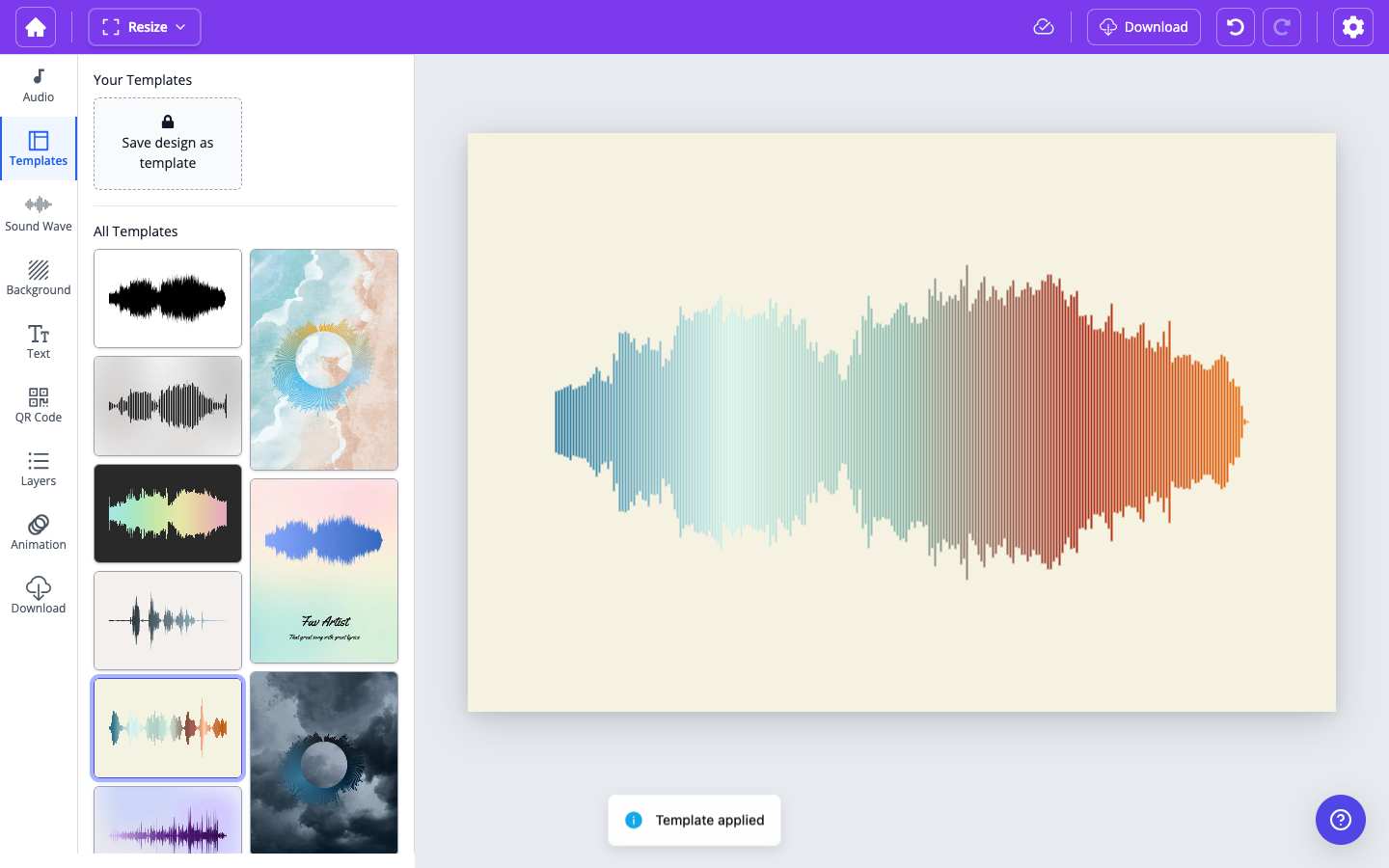
Open the Templates tab in the editor. Public layouts are listed under All Templates. You can also browse the catalog at wavevisual.com/templates and open one in the editor.
How to apply a template#
- Add your audio (upload, record, search a song, or paste a Spotify link)—or apply a template first and add audio after. Either order works.
- Open the Templates tab.
- Click a thumbnail under All Templates.
- You should see a brief Template applied confirmation.
What changes — and what does not#
Applying a template updates the visual design:
- Wave style, colors, thickness, spacing, and position
- Background (including wallpapers and images from the template)
- Text on the canvas
- Canvas shape (portrait, landscape, or square) when the template uses a different ratio
It does not replace your audio. The sound wave still represents the track or recording you chose.
You can keep editing after you apply a template—change colors, move the wave, swap the wallpaper, or pick a different template.
Wallpapers vs templates#
Wallpapers in the Background tab only change the background image. Templates in the Templates tab change the whole design.