
If you reuse the same look—same colors, type, and layout—save it as a template instead of rebuilding it each time. Saved templates are private to your account.
You need to be signed in#
Saving templates requires an account. If you are not signed in, Save design as template asks you to sign in.
Applying public templates under All Templates works without an account.
How to save#
- Finish the design you want to reuse (wave style, background, text, layout).
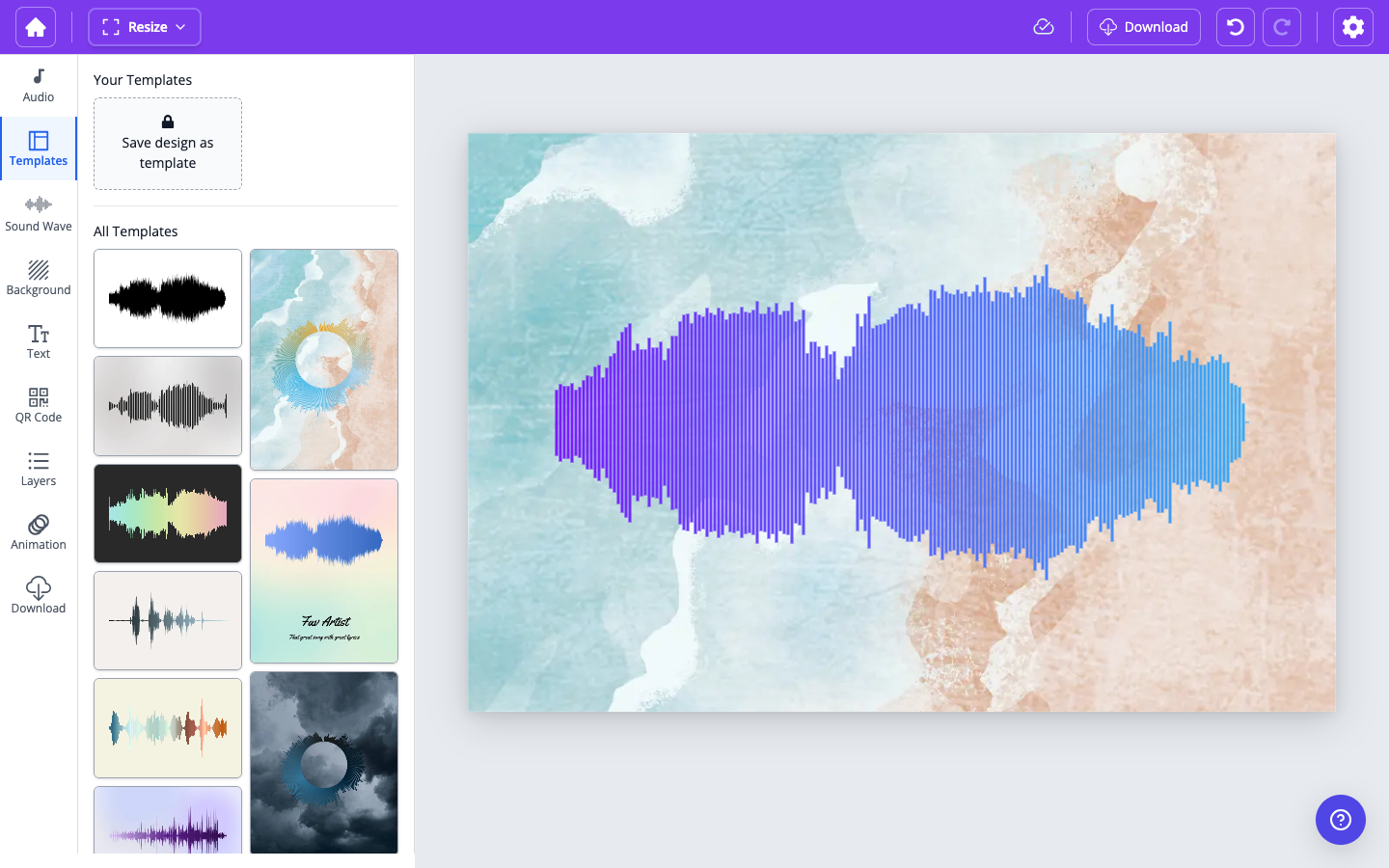
- Open the Templates tab.
- Under Your Templates, click Save design as template.
- The new thumbnail appears in Your Templates. Click it later to apply that look to any design.
Update or delete#
On a saved template thumbnail:
- Use the refresh control to overwrite that template with your current design. Confirm in the Update Template dialog—this cannot be undone except by saving a new template.
- Use the trash control to delete it. Confirm in the Delete Template dialog.
What gets saved#
The template stores the visual layout: wave style and placement, background, images, and text. It does not lock in a specific audio file. When you apply it later, your current audio stays on the canvas.