Creating sound waves from songs
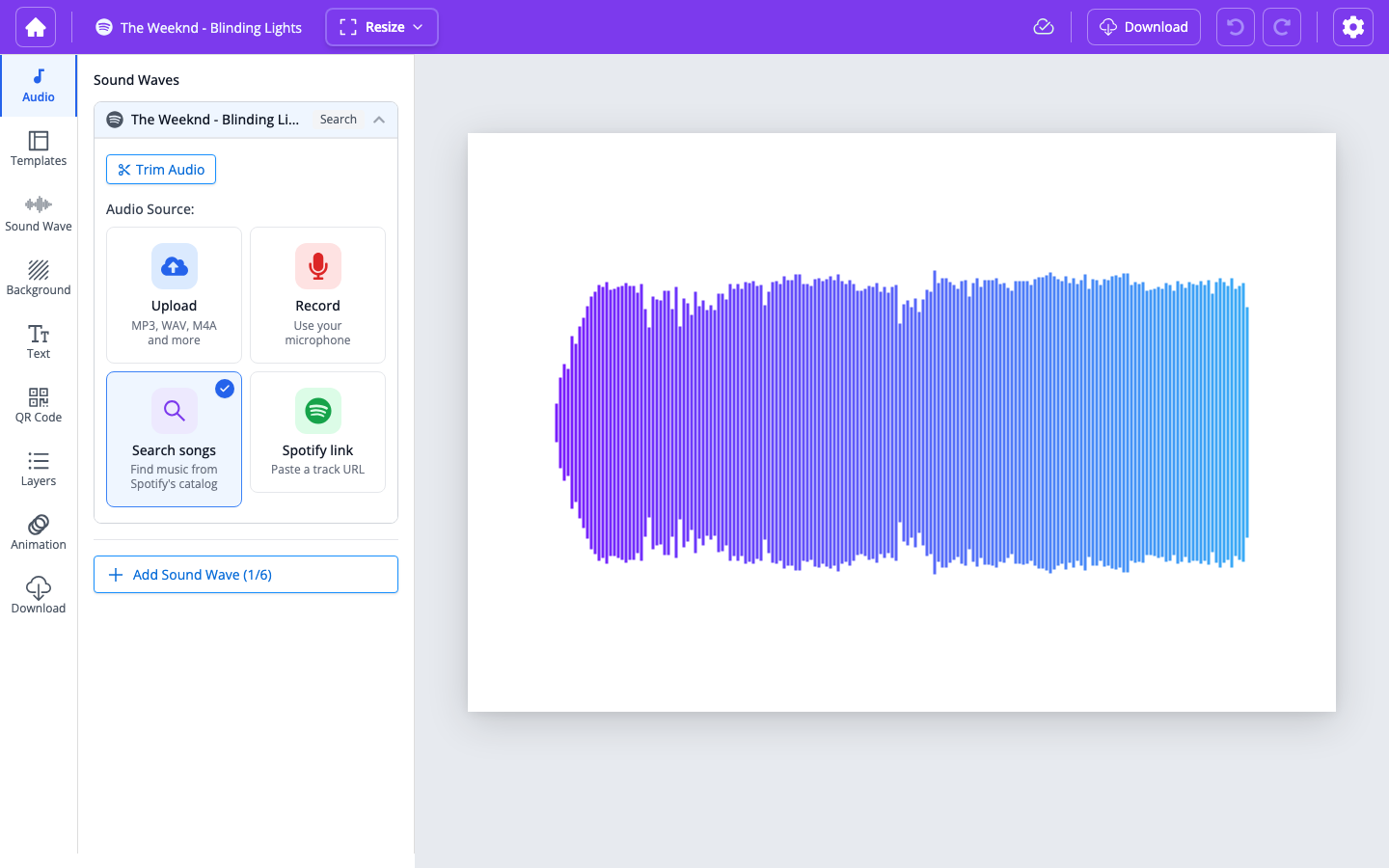
Use Search songs under the Audio tab to pick a track from Spotify’s catalog and generate a sound wave in the editor.
Songs are a great source of inspiration when making sound wave art. They are also one of the easiest ways to experiment with WaveVisual. To turn a track from Spotify’s catalog into a sound wave, use Search songs in the editor.
- Open wavevisual.com/editor.
- In the left sidebar, select the Audio tab.
- Under Add your audio, click Search songs (Find music from Spotify’s catalog).
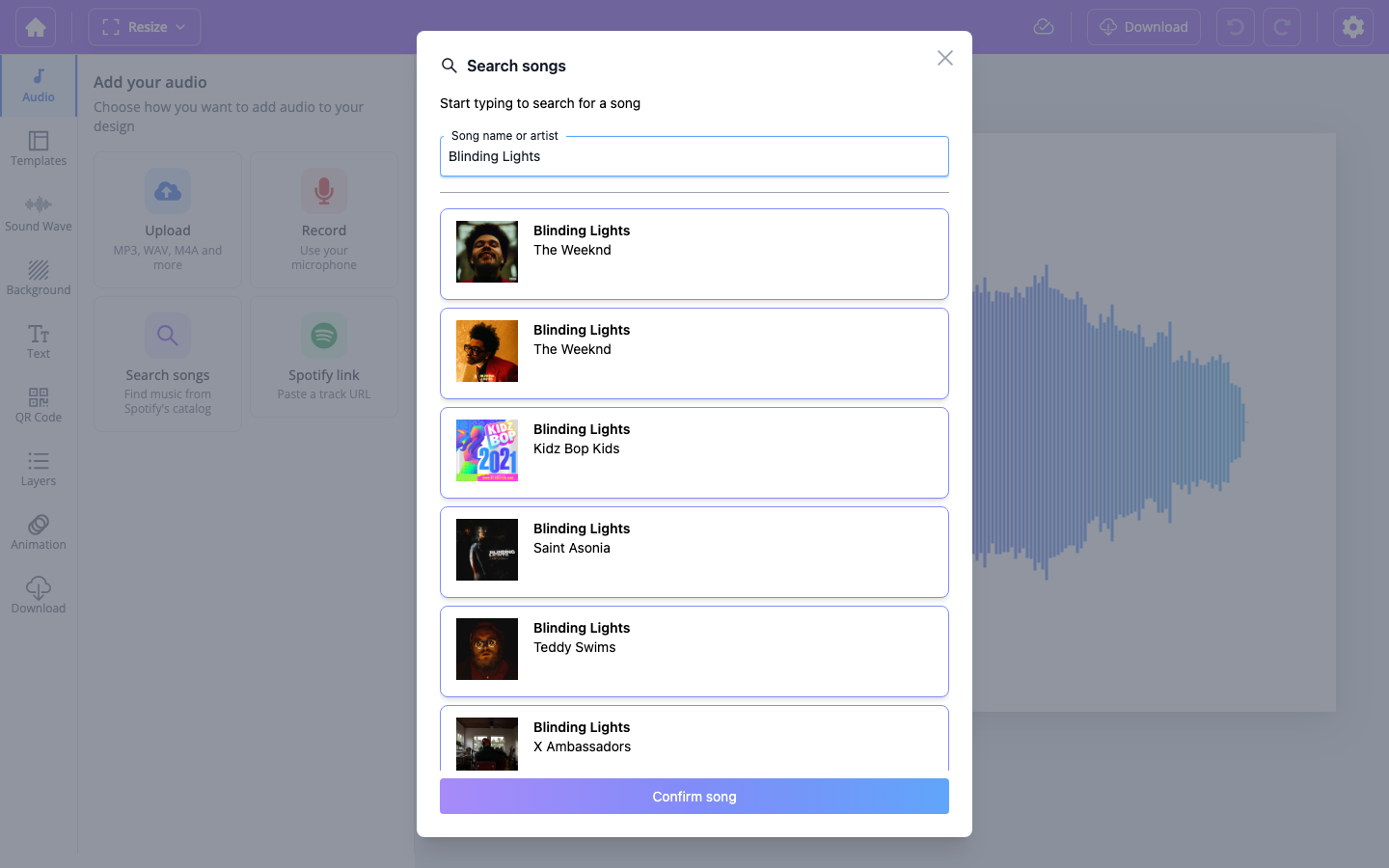
- In the Search songs dialog, type at least three characters in Song name or artist. Results are powered by Spotify’s catalog.
- Choose a track, then click Confirm song. WaveVisual loads the track and builds the waveform on your canvas.
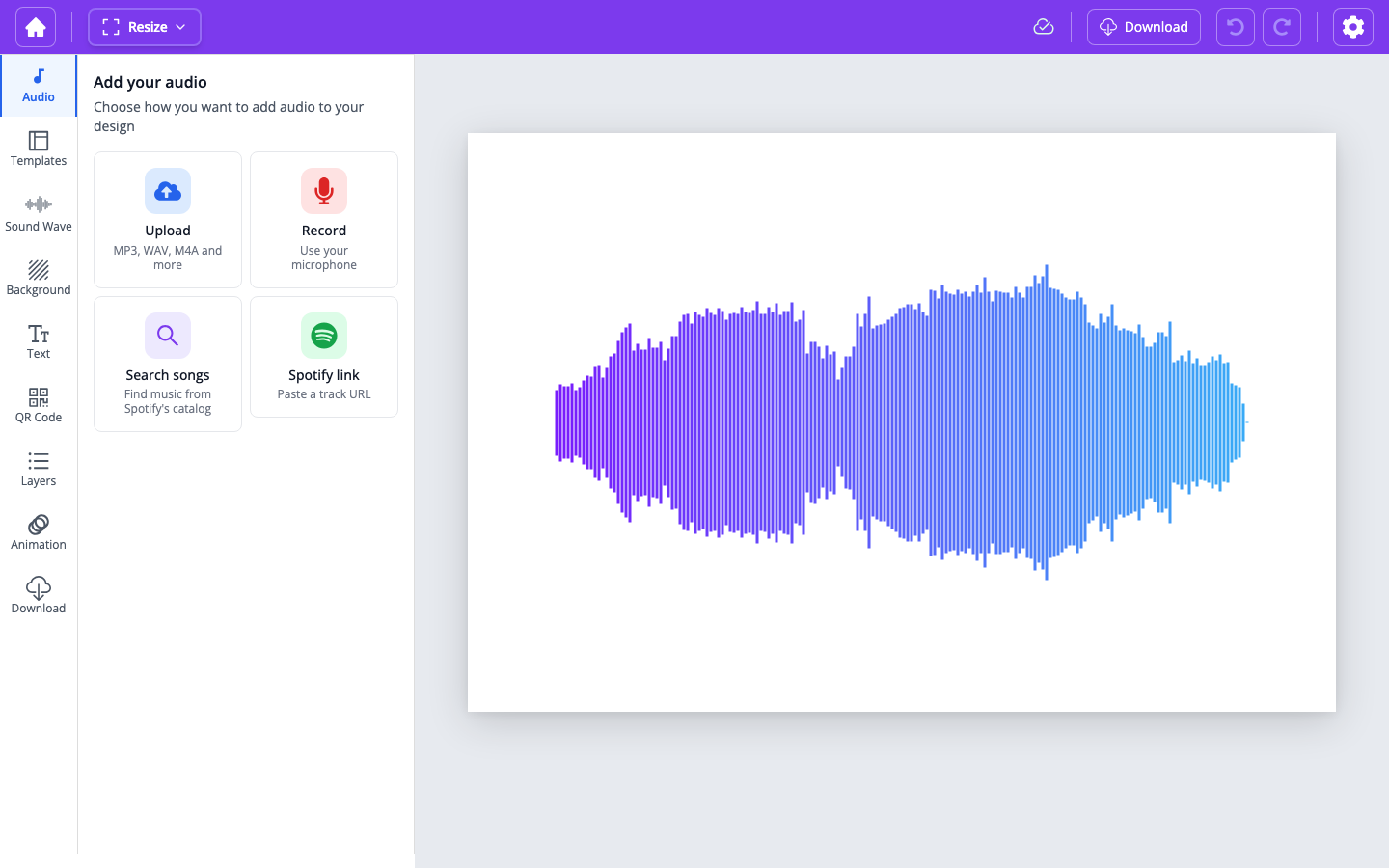
When you start typing, WaveVisual searches Spotify’s catalog and shows matching tracks and artists.
After a song is selected, WaveVisual fetches the audio analysis for that song and refines the analysis to generate an accurate, visually appealing sound wave.
Note: Spotify tracks are copyrighted, so WaveVisual can't play the full song back inside the editor. You'll see a link to open the track on Spotify instead of a Play button—see How can I play my audio? for details.