
Pick a canvas shape for where the design will be used. Video fits widescreen and vertical video. Print matches paper and photo frames. Social matches feed posts and stories. You can change the shape later from Resize in the editor header.
Change the canvas size#
- Open your design in the editor.
- Click Resize in the header. On a phone, the same control opens a panel from the bottom.
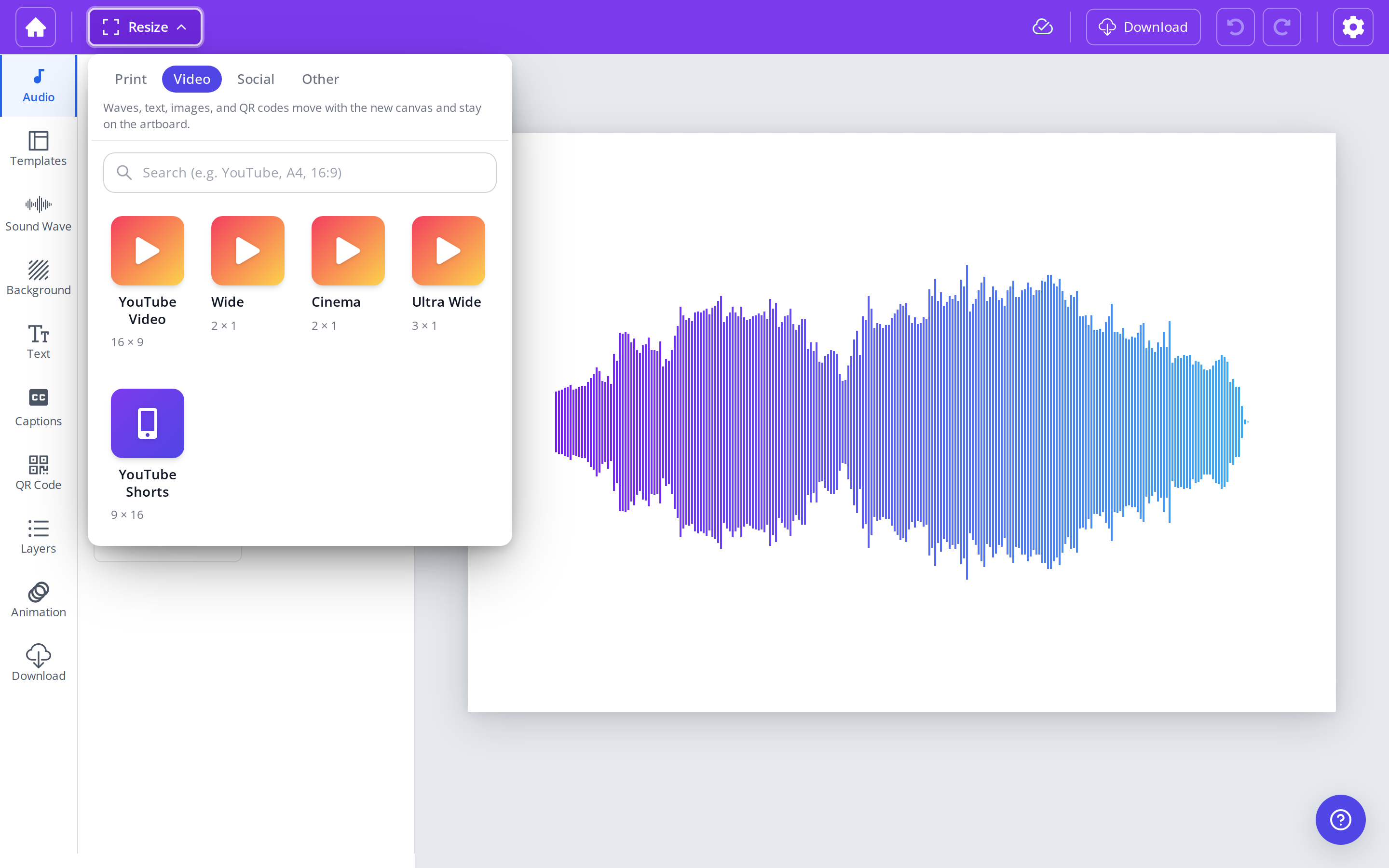
- Choose Video, Social, Print, or Other, or search for a name such as YouTube or A4.
- Click a size. The canvas updates right away.
Under the tabs, a short note explains the result: waves, text, images, and QR codes move with the new canvas and stay on the artboard.
What moves with the canvas#
Resize keeps the arrangement. It does not stretch the wave or the text.
- A wave, text block, image, or QR code that sat in the center stays in the center of the new canvas.
- If something would hang past the edge, it is moved back onto the artboard.
- Background colors, gradients, and background images fill the new canvas.
- Text size and wave size stay the same. After a large change, such as a tall poster to a widescreen video, check that text still looks the size you want.
- Undo returns the previous size. Use Ctrl+Z on Windows or Cmd+Z on Mac.
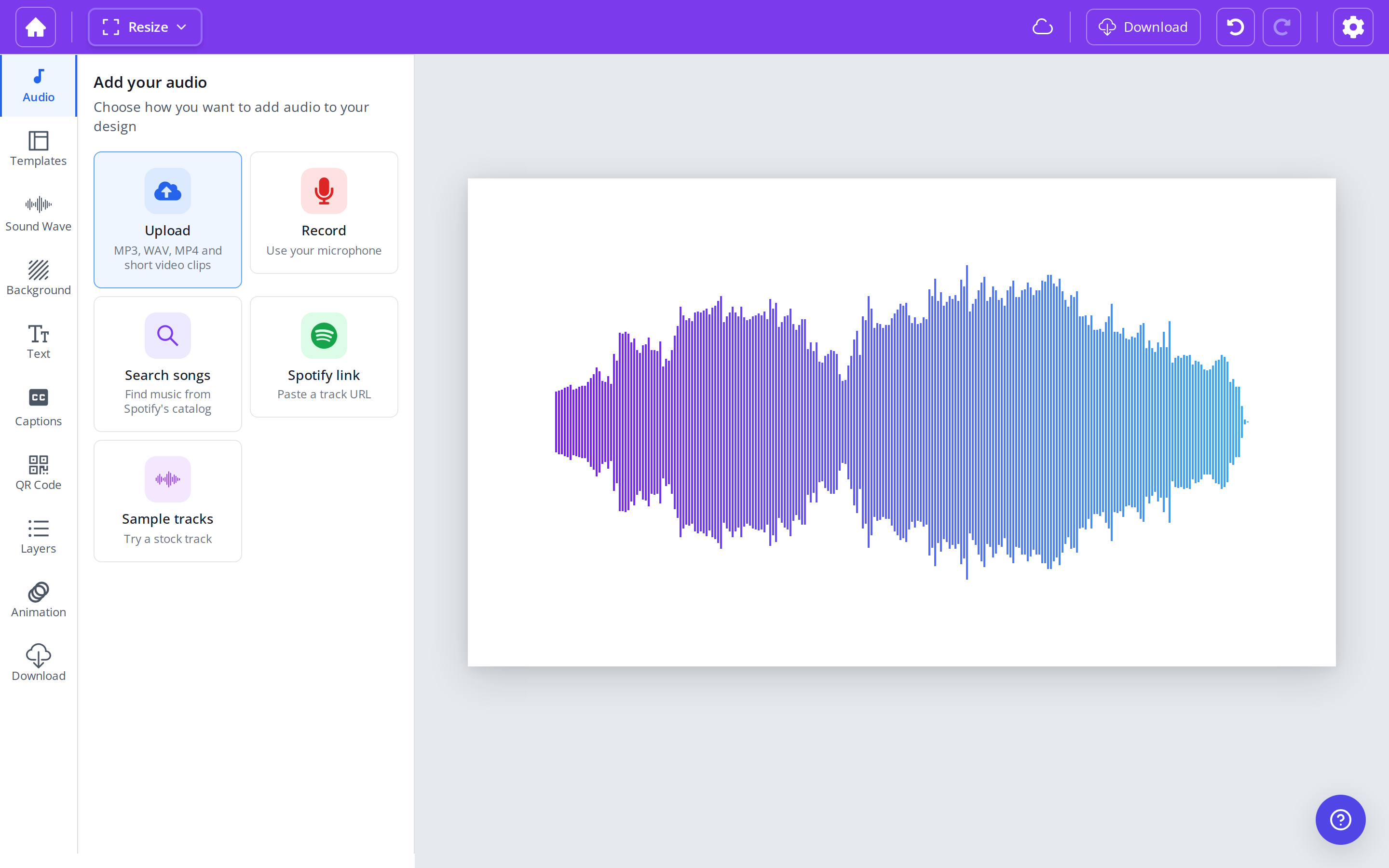
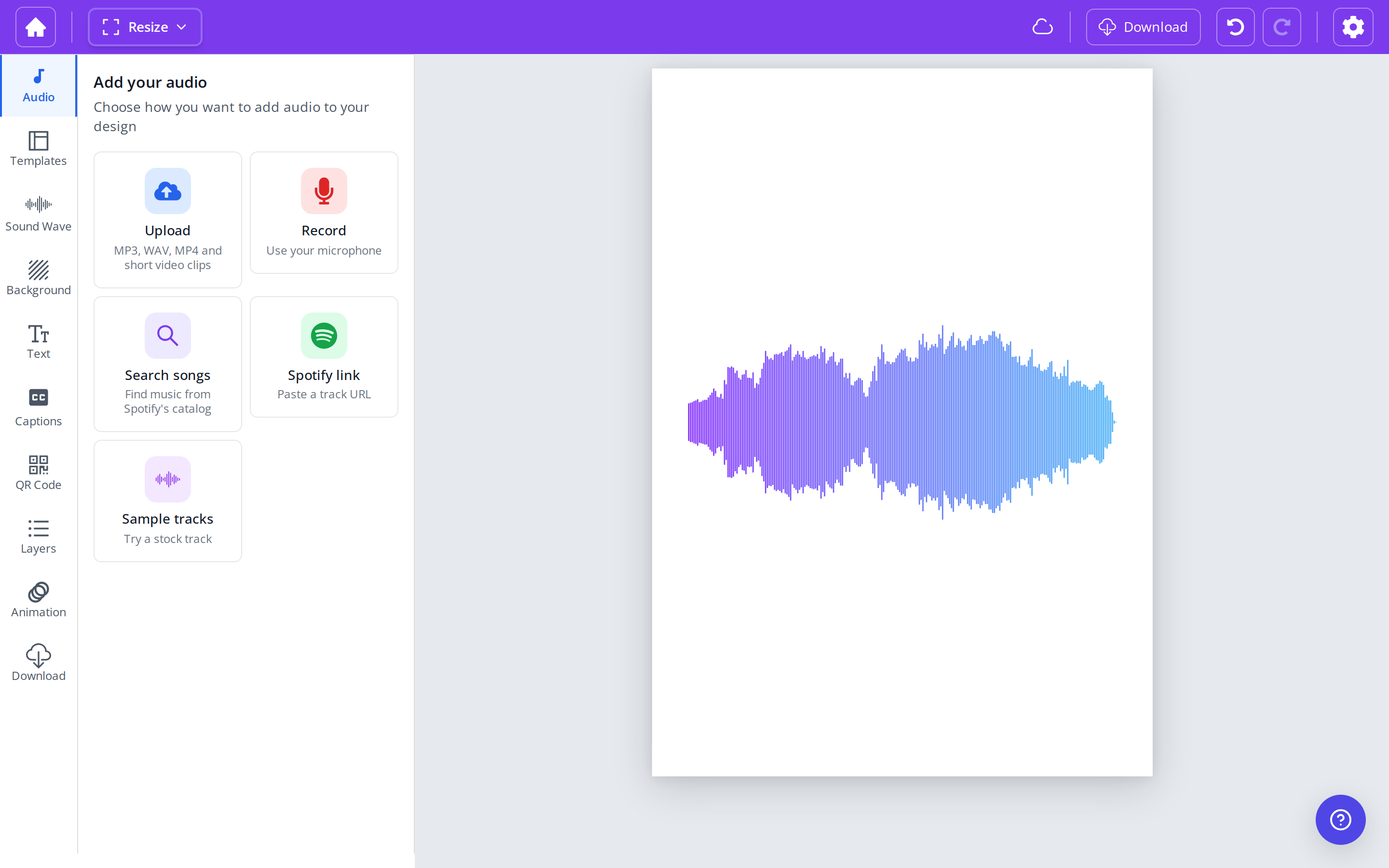
The same wave, after switching from a YouTube frame (16 × 9) to A4 portrait:
Video, social, and print#
Use Video when the design will play in a video or sit in a video frame. Use Print for a poster, flyer, document, or photo. Use Social for feed posts and vertical stories. Switching between them moves the layout with the canvas. Nudge anything that needs a closer look afterward.
Video#
| Size | Good for |
|---|---|
| YouTube Video, 16 × 9 | Widescreen video, thumbnails, and presentations |
| Wide and Cinema, 2 × 1 | A wide cinematic frame. Both presets use this same shape. |
| Ultra Wide, 3 × 1 | Banners and very wide video |
| YouTube Shorts, 9 × 16 | Vertical video. Instagram Reel and TikTok use this shape too. |
Animated downloads use this frame. MP4 can be 1080p or 4K. Choose the file type and resolution in the Download tab.
Social#
- Instagram Post, Facebook Video, and LinkedIn Post are square (1 × 1).
- Instagram Portrait is 4 × 5, a taller feed post.
- Instagram Reel and TikTok are 9 × 16, the same shape as YouTube Shorts.
Print#
| Size | Dimensions |
|---|---|
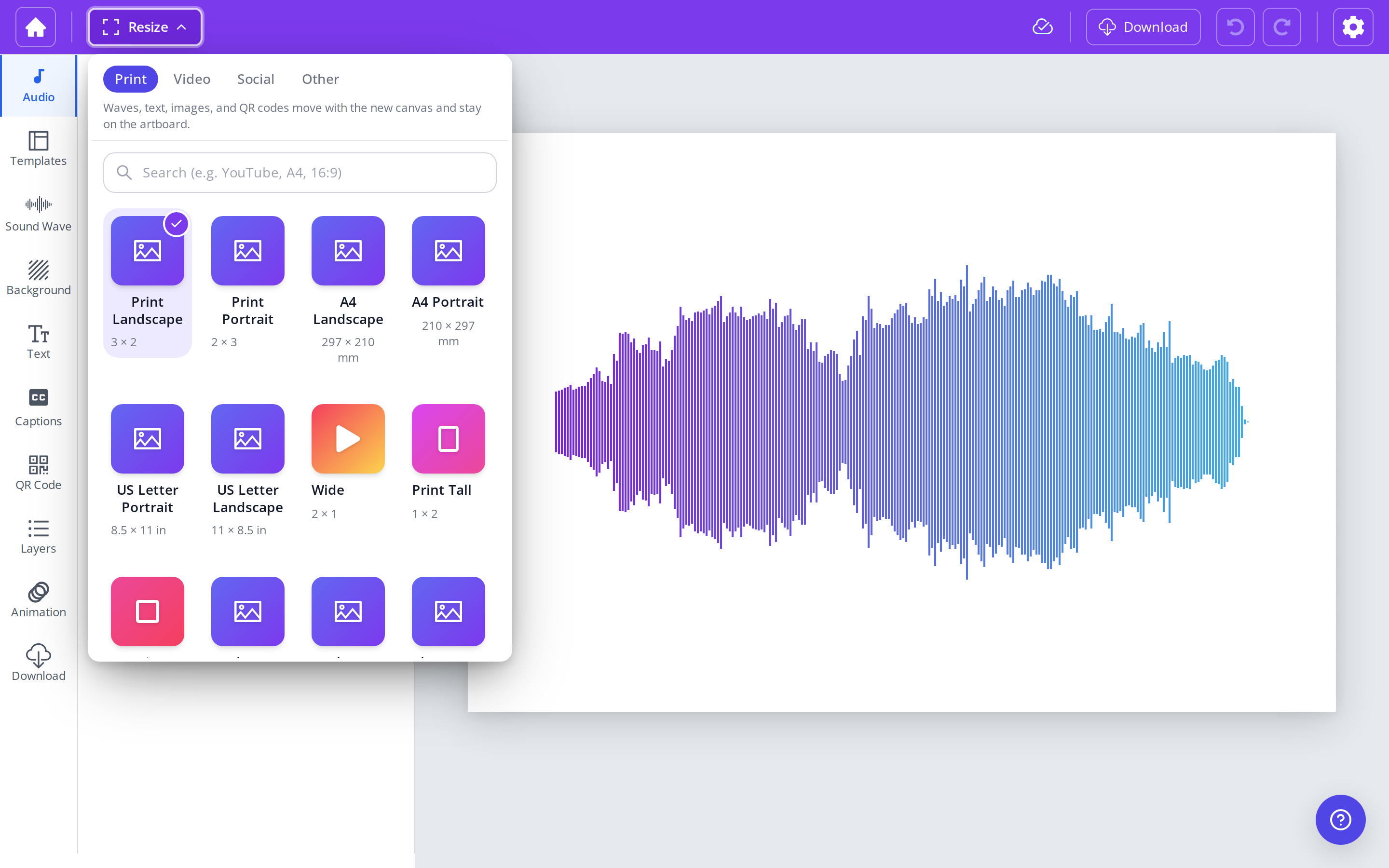
| Print Landscape | 3 × 2 |
| Print Portrait | 2 × 3 |
| A4 Landscape | 297 × 210 mm |
| A4 Portrait | 210 × 297 mm |
| US Letter Portrait | 8.5 × 11 in |
| US Letter Landscape | 11 × 8.5 in |
| Print Tall | 1 × 2 |
| Print Square | 1 × 1 |
| Photo Print | 2.7 × 3.5 in |
| Photo 11×14 | 11 × 14 in |
| Photo 5×4 | 5 × 4 in |
| Classic | 4 × 3 |
PNG and JPEG downloads use this shape at 300 DPI, up to about 12,000 pixels on the long edge. PDF and SVG stay sharp at print size. Pick the resolution in the Download tab. See What is the export resolution?.
Applying a design template can also change the canvas shape when the template uses a different ratio. See Using design templates.